Accept and answer a human request
A human request enters a queue. The customer is waiting until an eligible processor accepts it.
Before your shift
Confirm your workspace access, Ticket Processing license, process permission and queue rights. Ask an Admin to check office hours, the default queue and capacity under Configuration > Support AI > Processing & handoff.
Accept a request
- Open Customer Support > Conversations.
- Choose Mark available when you can take work. Keep the workspace connected so availability stays current.
- Open a waiting conversation in a permitted queue.
- Review the shared conversation scope.
- Accept the request. Eos rechecks your permissions and capacity at acceptance.
- Write in the public reply composer and send your response.
Two processors cannot own the same accepted conversation. If another person accepts first, reload the current state.
Work within the shared scope
The customer may have chosen a narrower transcript for a ticket. That selection can also limit the history shared for handoff. Do not assume you can see or share the whole original session.
Sidekick reply drafts are private proposals. Review them before sending. Use the private-note control for internal comments and the public composer for the customer.
Finish or leave
Close the conversation when the exchange is finished. Closing does not prove that the issue was resolved. Mark yourself unavailable when you stop taking new work. Use transfer and recovery if someone else needs to continue.
Screen guide
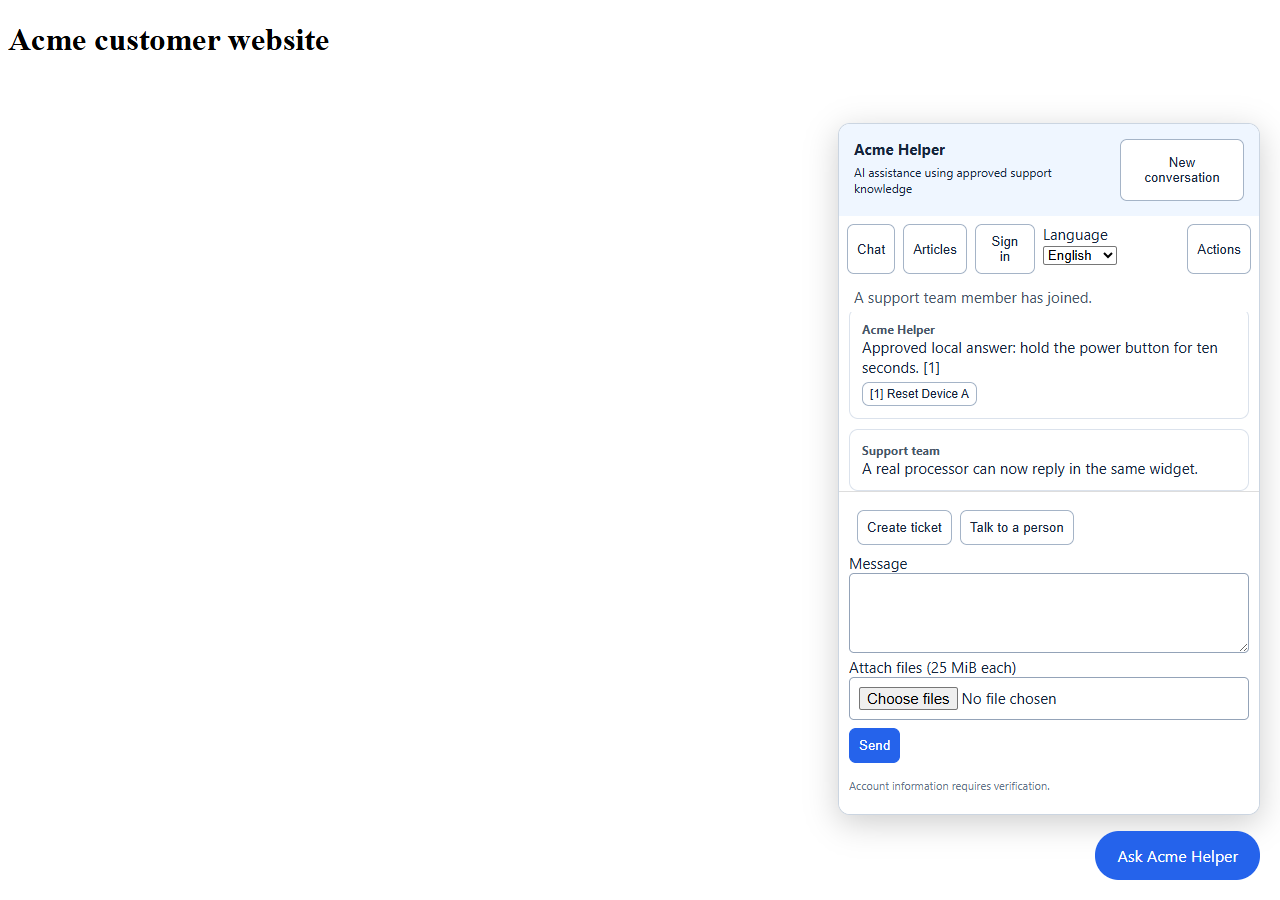
Customer widget after a processor has joined.. These images use example data. Values shown are not defaults.
- The status tells the customer that a support team member has joined.
- Staff replies appear in the same chat.
- The customer can still create a ticket or add a file.