Set support hours, routing and processing switches
Use Processing & handoff to control automated assistance and the conditions for human support.
Set hours and routing
- Open Configuration > Support AI > Processing & handoff.
- Choose the default handoff queue and default language code.
- Set the maximum live conversations per processor and human-request timeout.
- Enter the IANA timezone used by the support team.
- Enable each working day and enter its opening and closing times.
- Enter holiday dates as YYYY-MM-DD values separated by commas.
- Choose Save processing settings.
Leaving every day off means 24-hour availability. It does not mean the office is closed. Holidays still need to be checked. The current form supports one opening interval per enabled day.
Pause a capability
The same screen has separate switches for Sherpa AI, Sidekick AI, customer Agent actions, indexing and human assistance. Article review and a different-reviewer requirement are separate editorial controls.
An EosHQ provider pause cannot be overridden here. Read the displayed status before trying to enable a disabled capability.
Check the result
Test a human request during office hours and outside them. Confirm the queue and timeout on new requests. Existing waiting requests can retain the deadline recorded when they were created.
For ticket email and processor setup, follow the link to Ticket Processing configuration. For public widget or Help Center availability, use Website & channels.
Screen guide
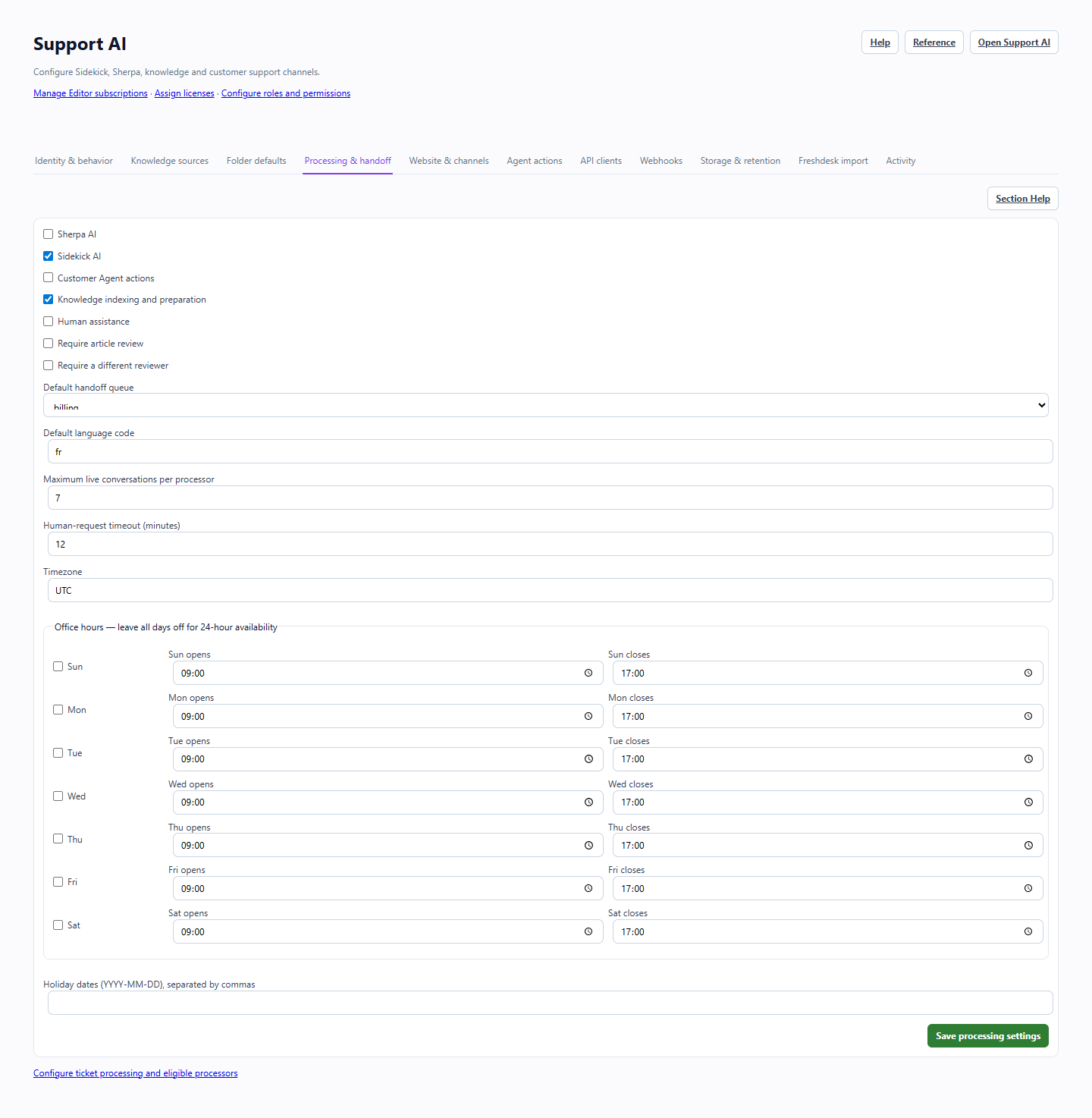
Processing and handoff settings with example values.. These images use example data. Values shown are not defaults.
- The top switches pause individual capabilities.
- Queue, capacity and timeout fields control new handoff requests.
- Office hours use the selected timezone. Save changes with Save processing settings.