Ask Sidekick for staff assistance
Sidekick helps you use the organization's approved support knowledge. Its conversation is private staff work. It is separate from the shared customer inbox.
Ask a question
- Open Customer Support and choose Ask Sidekick.
- Describe the product, version and problem clearly.
- Read the answer and open its citations.
- Ask a follow-up question if the evidence needs clarification.
- Close the drawer when you are finished.
Sidekick uses current published sources that you are allowed to use. Staff-only sources can be available when Staff AI is enabled. Content excluded from all AI cannot be used.
Use an answer carefully
Check that the cited instructions apply to the customer's product and version. A fluent answer is not proof that the advice is right. Use a manual response when the knowledge does not cover the question.
If Sidekick is paused or the organization has no available AI usage capacity, check the message shown in the drawer. You can still read permitted articles and continue authorized human work.
If the drawer does not start
Use the retry control if one is shown. An Admin should check the Sidekick switch and configured AI service. A missing Editor assignment can affect workspace access. Do not keep submitting the same question while the service is unavailable.
See reply drafts for customer-safe assistance inside a human conversation.
Screen guide
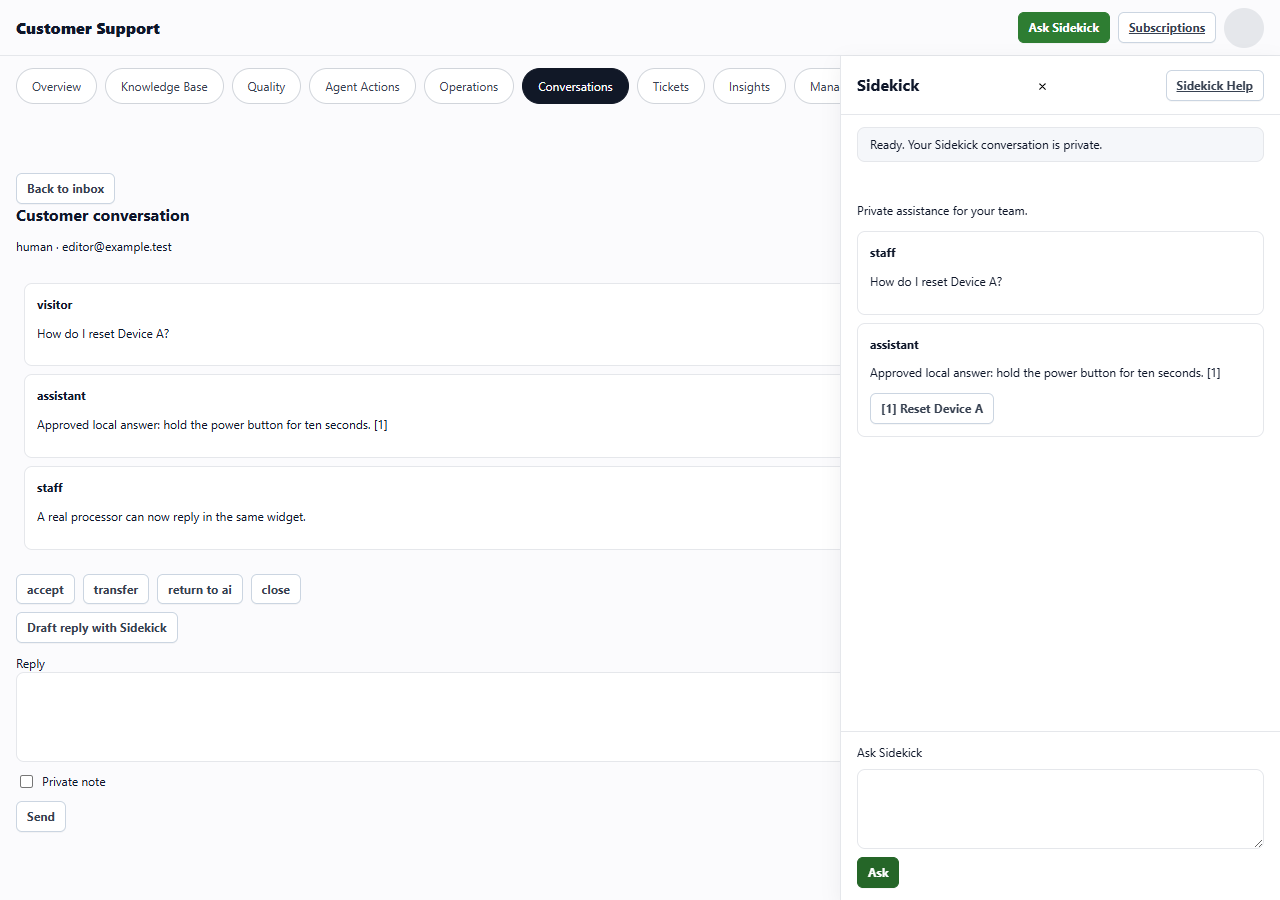
Sidekick drawer in the Customer Support workspace.. These images use example data. Values shown are not defaults.
- The drawer is private staff work. The shared customer conversation stays behind it.
- Open a citation to inspect the article used in an answer.
- Use the question box for a follow-up. Closing the drawer does not send its text to the customer.