Use Kiosk Mode in EosHQ Mobile
Kiosk mode lets a designated user operate a shared EosHQ Mobile device to record time for a permitted group of people. A warehouse desk, team supervisor, reception station, or training room can each use a different roster without requiring every worker to sign into the device.
This guide explains daily operation, Admin setup, roster choices, and troubleshooting. It includes a Warehouse + Work Center Sandbox example. Warehouse and Work Center are example custom fields; they are not required for Kiosk mode.
Understand the three settings
Three separate settings work together:
| Setting | What it controls | Where an Admin sets it |
|---|---|---|
| Mobile Kiosk Mode Only | Opens the mobile app directly in Everyone instead of the normal mobile workspace. | User Management > edit the operator |
| Can Check In Everyone | Permits the operator to use Everyone for the configured roster. | User Management > edit the operator |
| Everyone > Show | Determines which people appear for the signed-in operator. | Configuration > Time Tracking |
Enable both user settings for a dedicated kiosk account. A user can have Can Check In Everyone without being kiosk-only; that user retains the normal mobile workspace and can open Everyone from it. An Admin or Manager role alone does not turn on Everyone.
Kiosk-only mode is an EosHQ Mobile navigation setting. Device screen locking, restricted browser access, and operating-system kiosk controls are managed separately. The app provides Sign out; it does not establish a worker PIN or biometric identity check merely by enabling Kiosk mode. Decide who will operate and supervise each shared station.
Before you start
An Admin should confirm:
- The operator is an active user with login access and a valid Manager or Standard license.
- Every person who will record time has an active user record and a valid base license. Appearing in a roster is not a substitute for licensing.
- The operator has both Kiosk settings enabled, and the organization has the intended Everyone scope.
- Reporting relationships, teams, or matching user fields are populated, depending on the scope you choose.
- The device has a working network connection and a current EosHQ Mobile version. Allow camera or photo-library access if your process uses photos.
A worker does not need to sign into the shared device for each check-in. The signed-in operator performs the action for the selected worker. Login access, license assignment, and roster inclusion are separate concepts.
For a Temporary Org, the parent Admin allocates license quantities and the Temporary Org Admin assigns them under Subscriptions > Users & Licenses. Temporary Orgs normally have separate login-seat limits; this example Sandbox has a Provider-approved four-login exception. Creating additional worker records or assigning base licenses does not create additional login seats.
Admin: choose the roster
Open Configuration > Time Tracking, find Everyone, and choose Show. Save the Time Tracking settings when finished.
| Show | Who appears | Example |
|---|---|---|
| Current logged-in user | Only the signed-in user. This is the default scope. | An individual station |
| Direct reports | Active people reporting directly to the operator. It excludes the operator and indirect reports. | A supervisor recording time for direct reports |
| Members of teams the user leads, including the user | Members of directly led teams, plus the operator. Descendant teams are excluded. | A lead responsible for several teams |
| Members of the user's assigned team, including the user | People with the same Assigned to Team value, plus the operator. | A team station |
| Members with identical values in selected fields, including the user | People matching every selected user field, plus the operator. | Warehouse + Work Center, location + department, or another operational grouping |
| Everyone in the organization | All active people in the organization, subject to applicable license eligibility. | A central reception station |
The organization has one Everyone scope. Eos evaluates it separately for each signed-in operator. Two operators can therefore see different groups under the same setting, or share the same roster if their relevant values are identical.
The Everyone permission and scope also affect the web Everyone view. Mobile Kiosk Mode Only controls mobile navigation; it does not replace the organization's access rules.
Admin: configure matching user fields
For a field-based roster:
- Create the necessary custom objects and user lookup fields through your organization's configuration tools. For example, create Warehouse and Work Center objects and add a lookup to each on User.
- Create the Warehouse and Work Center records you will use.
- In User Management, populate those lookups on every operator and worker.
- In Configuration > Time Tracking > Everyone > Show, choose the matching-fields option.
- Select Warehouse and Work Center, then save.
- Test each operator's mobile roster.
You can select one to three user fields. All selected fields must match: Warehouse + Work Center means the same warehouse and the same work center, not either one. For lookups, select the same record rather than creating duplicate records with identical names.
Blank values do not group unrelated people together. Multi-select fields must contain exactly the same selections, although their order can differ. The operator is included in matching-field rosters even when no other person matches.
Roster fields and time-tracking levels serve different purposes. A Warehouse lookup used to filter people is not automatically a tracking selection on each time entry. Configure tracking levels separately if you also need to record warehouse or work-center selections as work data.
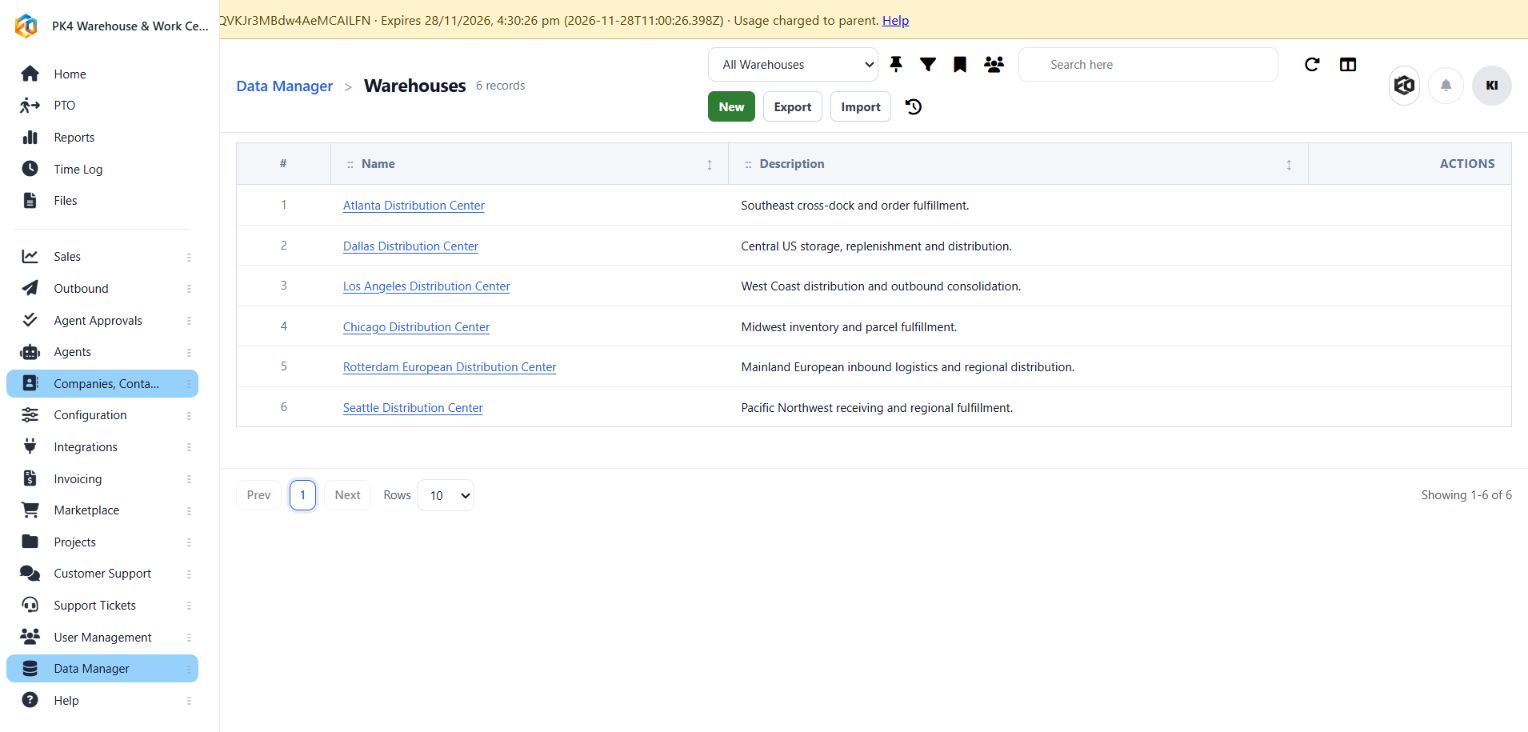
The Sandbox has five US warehouse records and one mainland European warehouse record. People appear in a roster only after their user lookups are assigned.
Worked example: Warehouse + Work Center Sandbox
The Whse-Work Center Sandbox demonstrates two operational groups across 150 licensed users, including four kiosk operators. The groups have 75 users each; the operators are part of those totals.
| Group | Warehouse | Work Center | Kiosk operators | Expected roster per operator |
|---|---|---|---|---|
| US receiving | Seattle Distribution Center | Receiving | Two designated kiosk users | 75 people in this combination |
| European shipping | Rotterdam European Distribution Center | Shipping | Two designated kiosk users | 75 people in this combination |
The selected scope matches Warehouse AND Work Center. Both operators in the US group see the same US roster. Both operators in the European group see the same European roster. Sharing only a warehouse, or only a work center, does not qualify someone for the other group's roster.
The Sandbox contains additional warehouse and work-center records for configuration experiments. Creating those records does not add a person to a roster: the user assignments determine the group. The 150-user dataset uses the two combinations above.
To reproduce the example in your own organization, use your own operator accounts and records. You do not need the Sandbox's email addresses, organization ID, or Provider exception. Apply your own organization's login and license limits.
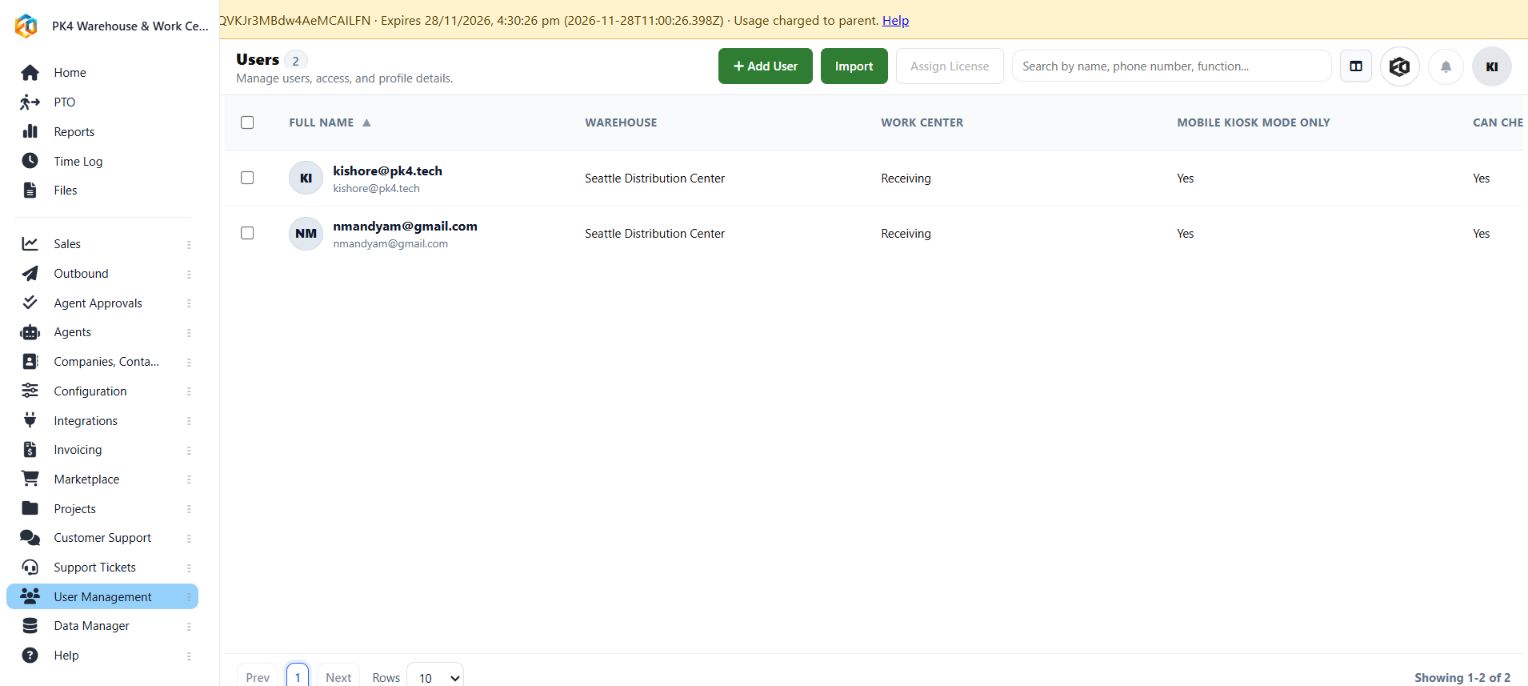
Initial two-user pilot: both operators have Seattle Distribution Center + Receiving, Mobile Kiosk Mode Only = Yes, and Can Check In Everyone = Yes. The sample was subsequently expanded to the two 75-user groups above. The older Sandbox notice in this capture has since been replaced by a compact pill.
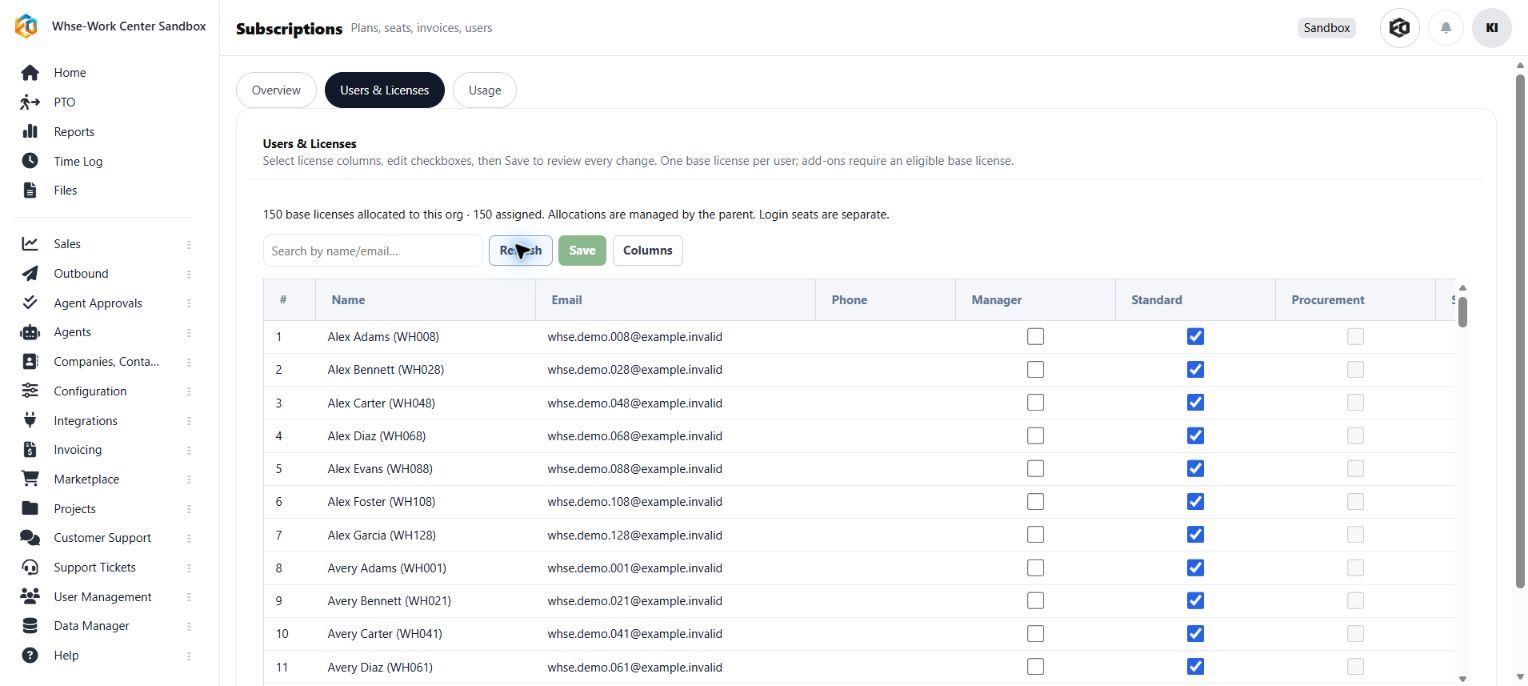
Expanded Sandbox: 150 base licenses allocated and assigned. Its base-license totals are one Manager and 149 Standard. Optional add-ons are not prerequisites for basic kiosk time recording.
Operator: sign in and find a person
- Open EosHQ Mobile and sign in with the designated kiosk account using your normal sign-in method.
- If prompted, select the organization intended for this device. Do not assume the last-used organization is the correct one.
- A kiosk-only account opens Everyone. Check the roster before recording time.
- Search by name, email, or team. Clear the search to return to the full roster.
- Confirm the selected person and review their status before tapping an action.
Use Refresh to reload people and their current time-tracking state. The Everyone count is the loaded roster count; entering a search narrows the visible cards.
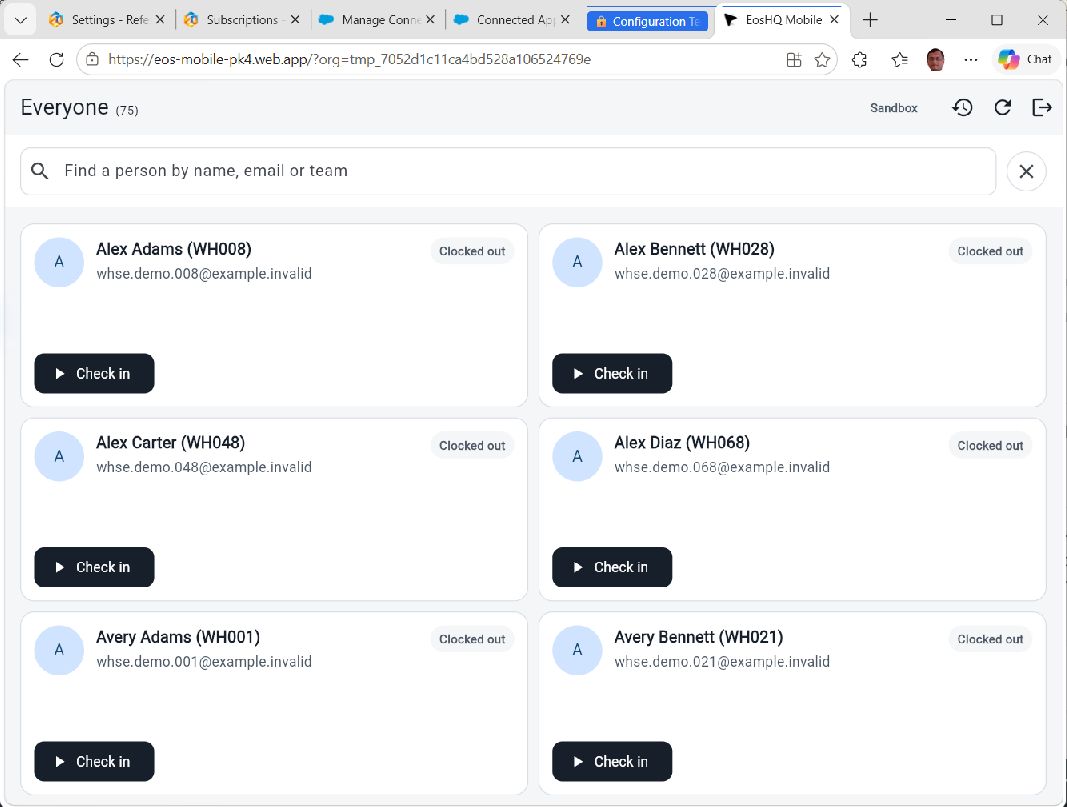
Current Sandbox roster for a Seattle + Receiving operator: Everyone (75), a compact Sandbox pill, search, worker status and Check in actions. Available buttons vary by person and configuration.
Operator: record time
The buttons shown depend on the person's time-capture mode, current state, and permissions. Follow the actions offered on that person's card.
| Action | Purpose |
|---|---|
| Clock in / Clock out | Start or finish a clock session where the clock-and-check-in mode is configured. |
| Check in / Check out | Start or finish work on the selected tracking records. |
| Manual time | Enter a time range when manual entry is permitted. |
For check-in:
- Choose Check in on the correct person's card.
- Select the required work records. The default tracking levels are Project and Task; your organization may use two or three levels with different objects and labels.
- Complete each mandatory level. A parent selection can filter the records available at later levels. Changing a parent can clear selections that no longer qualify.
- Add a photo and notes if your process calls for them. The app offers camera and library choices where supported; those actions depend on device permissions.
- Review the person and selections, then complete the action.
- Wait for the success message and refreshed state before handing the device to the next person.
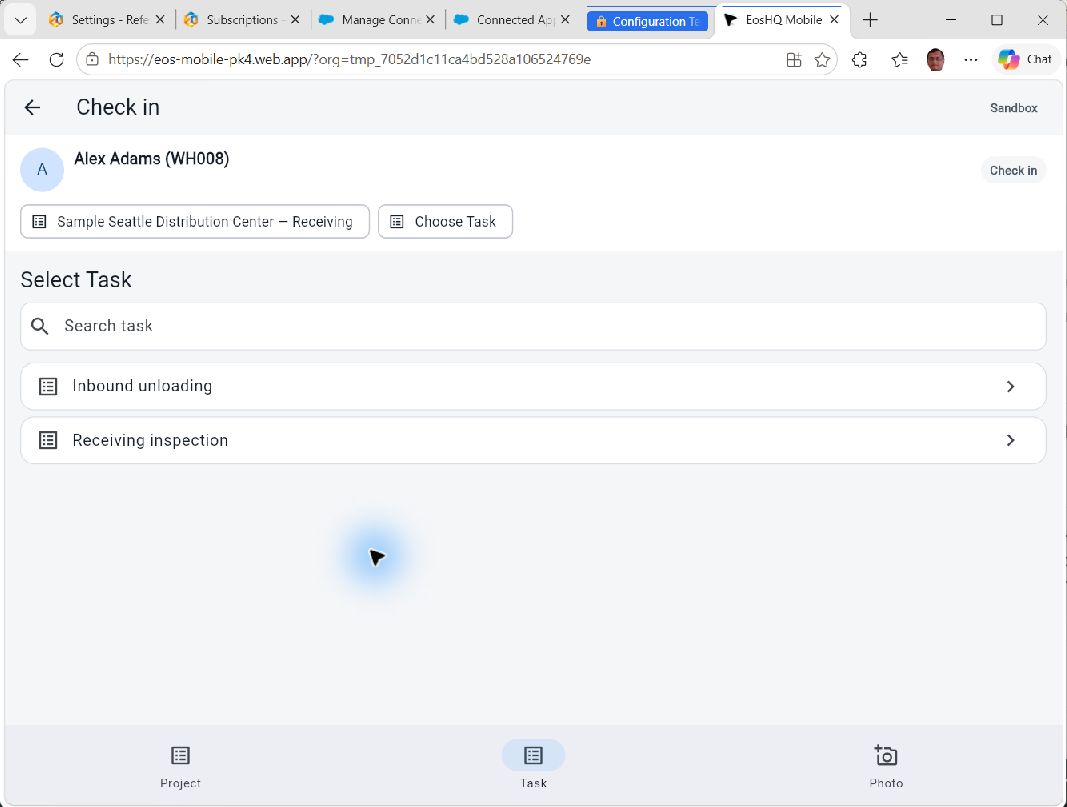
After choosing the Seattle sample project, select an eligible task such as Receiving inspection. The worker and chosen project remain visible above the task list.
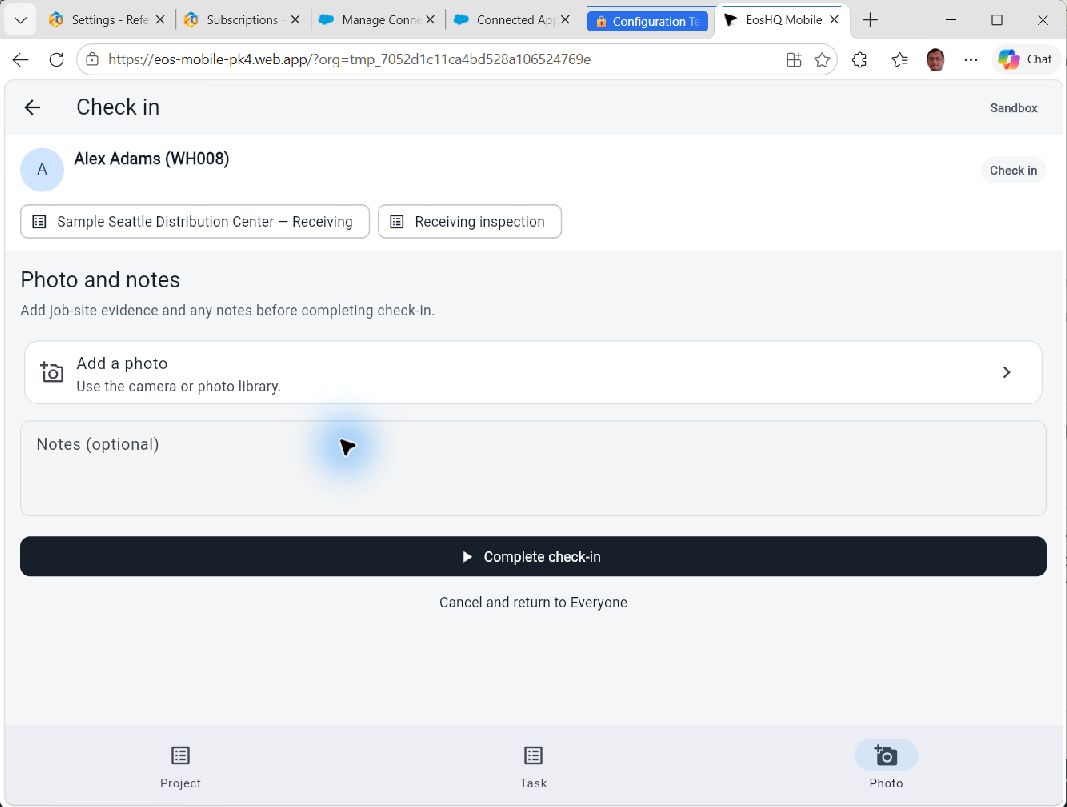
Review the person and work selections before Complete check-in. Opening this form does not save a check-in; Cancel and return to Everyone leaves without submitting.
Available Projects and Tasks are evaluated for the worker whose time is being recorded, not inherited from the kiosk operator. Being able to see a person does not give that person access to all work records.
Check-in-only mode omits the separate attendance-clock workflow. Clock-and-check-in mode supports both. Manual time and travel options appear only when permitted. If travel is enabled, follow the offered travel action and the relevant work selections.
To leave an unfinished entry without saving, use Cancel and return to Everyone. Opening a check-in form or selecting a project does not by itself create a completed time entry.
Review recent entries and reports
Use the Recent time entries history icon in Everyone to review entries available to the signed-in account. Open an entry to inspect its details. History access follows the account's permissions; it is not an unrestricted organization-wide report.
Admins and authorized managers can also review the resulting time records and reports in the web app. Verify the worker, work selections, start/end times, and duration. The Sandbox's sample history can illustrate reports; sample records are not evidence that a current kiosk action succeeded.
Keep a shared station ready
Keep the device in the intended organization, use a supervised operator account, and sign out when the station is unattended or its operator changes. Protect the device with your organization's normal device controls. Do not share the operator's credentials with every worker.
Use an online connection for recording time. If a request fails, inspect the person's refreshed state or recent entries before trying again; an interrupted response is not proof that nothing was saved. This guide does not assume offline queuing or automatic offline synchronization.
If an Admin changes the tracking configuration, new work uses the new choices. An existing running timer can finish under its original configuration. If the app reports a configuration change, refresh the choices and select valid records again before submitting.
Troubleshooting
| What you see | What to check |
|---|---|
| Everyone access is not enabled | Enable Can Check In Everyone for the operator. Kiosk-only mode alone is insufficient. Sign in again or reload the organization context after a change. |
| The normal mobile workspace appears | Confirm Mobile Kiosk Mode Only is enabled on this user in this organization. |
| A worker is missing | Clear search, refresh, verify the organization, active status and base license, then check the selected roster scope. |
| Only the operator appears | Check for the default self scope, blank matching fields, an unassigned team, or no other matching users. |
| The wrong group appears | Compare the operator's Warehouse and Work Center with the workers' actual lookup records; check both fields. For team/reporting scopes, check those relationships instead. |
| A Project, Task, or other work record is missing | Check the worker's access, record status, mandatory selections, and parent filters. |
| An expected action is absent | Check the worker's capture mode, current state, and manual-time or travel permissions. |
| A photo cannot be added | Check camera/library permission, device support and connectivity. |
| The organization cannot be opened | Check membership, login access, license/subscription status and, for a Temporary Org, expiry and parent eligibility. |
| A submission fails or the screen stops responding | Check connectivity, refresh state/history before retrying, and report the error and affected person to your Admin. |
Admin: verify before rolling out
- Sign in as every kiosk operator and confirm the intended organization opens.
- Confirm expected workers are present and workers outside the scope are absent.
- For matching fields, test someone who matches only one selected field; they should not appear as another matching worker.
- Verify users are licensed and that record visibility has not granted additional login seats.
- Complete an authorized sample session and confirm its saved time record and report values.
- Check search, refresh, recent entries, optional photo permissions, and sign-out.
- Repeat the checks after changing roster fields, team assignments, tracking levels, or licenses.